Introduction
Wi-Fi has become an essential part of our daily lives. We use it for studying, working, watching videos, browsing websites, and communicating with others. To access most Wi-Fi networks, we need a password provided by the network owner. Connecting to a Wi-Fi network is usually simple, but sometimes users face problems entering the password or establishing a connection.
In this article, we will explain how to connect to a Wi-Fi network using its password on different devices and how to troubleshoot common connection problems.
1. How to Connect to Wi-Fi on a Mobile Phone
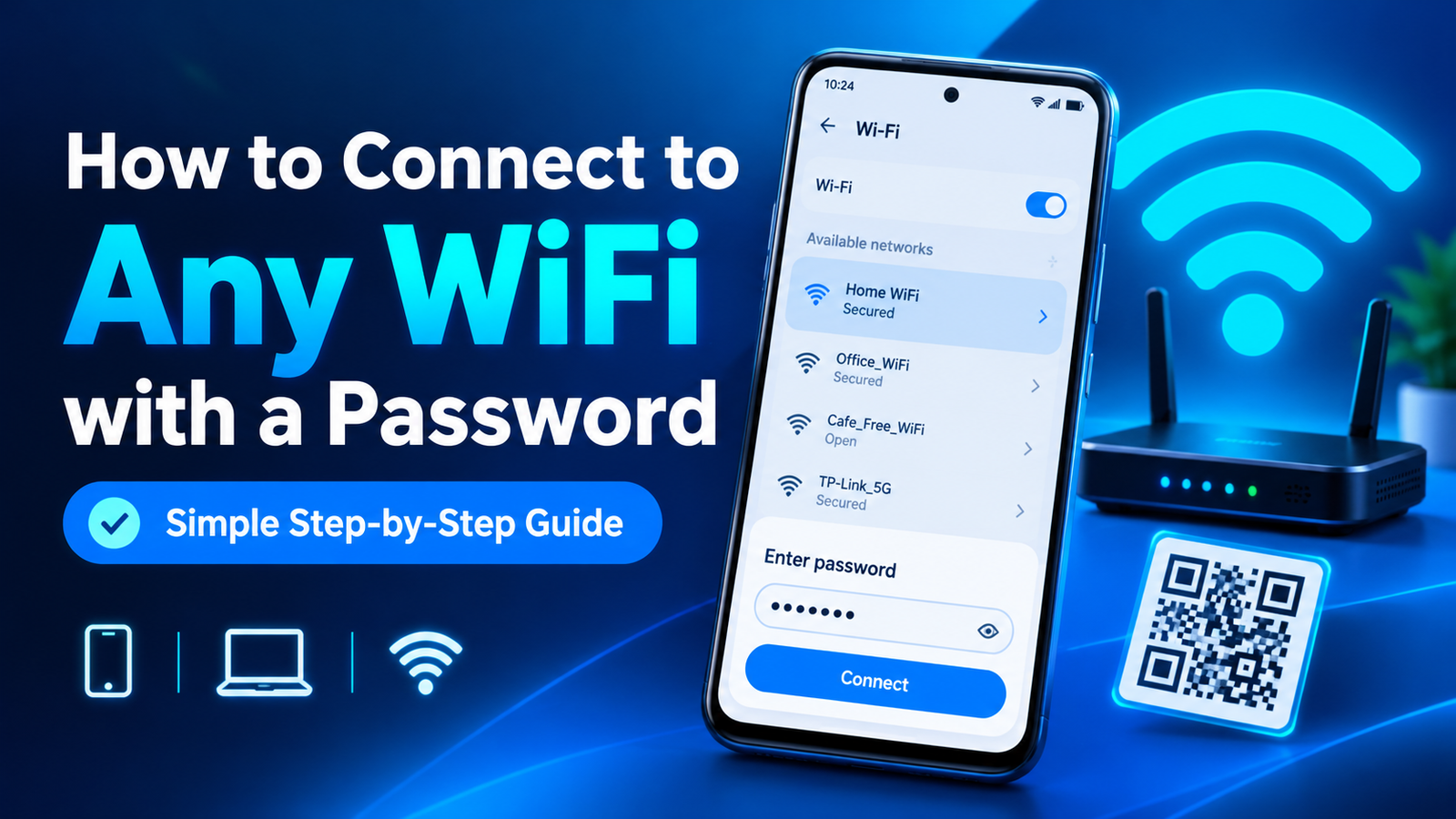
Connecting your mobile phone to a Wi-Fi network is easy. Follow these steps:
- Open Settings on your phone.
- Select Wi-Fi or Network & Internet.
- Turn on Wi-Fi.
- Choose the network you want to connect to.
- Enter the correct Wi-Fi password.
- Tap Connect or Join.
If the password is correct and the network is working, your phone should connect within a few seconds.
2. How to Connect to Wi-Fi on a Computer
You can also connect a Windows computer or laptop to a wireless network.
- Click the Wi-Fi icon on the taskbar.
- Make sure Wi-Fi is enabled.
- Select the network name you want to use.
- Click Connect.
- Enter the Wi-Fi password.
- Click Next and wait for the connection.
Once connected, you can access the internet through your browser or other applications.
3. How to Connect Using a QR Code
Some routers and mobile phones support Wi-Fi sharing through QR codes. This method can save time because you do not need to type the password manually.
To use this method:
- Ask the network owner to open the Wi-Fi sharing option on their phone, if available.
- Let them display the Wi-Fi QR code.
- Open your phone’s camera or QR-code scanner.
- Scan the code.
- Follow the prompt to join the network.
This method works only when the device and network support it.
4. What If You Forget the Wi-Fi Password?
If you forget your own Wi-Fi password, there are several ways to recover access.
- Check the router label: Some routers have the default Wi-Fi name and password printed on a sticker.
- Check a connected device: A phone or computer that has already joined the network may let you view or share the saved password after authentication.
- Check the router settings: If you own or administer the router, sign in to its management page to view or change the wireless password, if supported.
- Contact the network owner: If the network belongs to someone else, ask them for the password or a guest connection.
If you reset your router, you may need to configure its network name and password again.
5. Common Wi-Fi Connection Problems
Sometimes, entering the correct password is not enough to connect. Here are a few common issues and their solutions.
Incorrect password: Check capitalization, spelling, and special characters.
Weak signal: Move closer to the router and try again.
No internet access: Restart the router if you are authorized to do so, or contact the internet service provider.
Too many connected devices: Some routers have connection limits. The network administrator may need to disconnect unused devices.
Device compatibility: Older devices may not support certain Wi-Fi security standards or frequency bands.
6. Is It Possible to Connect to Wi-Fi Without Knowing the Password?
Some networks offer legitimate alternatives to manually entering a password. These include guest networks, QR-code sharing, and Wi-Fi access through a supported device-sharing feature. Certain public Wi-Fi networks also allow users to connect through a sign-in page.
However, you cannot legitimately access every private Wi-Fi network without authorization. Avoid applications or websites that promise to reveal any Wi-Fi password instantly, as they may be fraudulent or unsafe.
Always obtain permission before connecting to someone else’s private network.
Conclusion
Connecting to Wi-Fi with a password is a straightforward process on most smartphones, laptops, and computers. By selecting the correct network, entering the password carefully, and troubleshooting common problems, you can usually establish a connection quickly.
If you forget your password, check your router, use a device that has already saved the credentials, or ask the network owner for help. Using secure and authorized methods protects both your privacy and the network owner’s information.